
Files and Google Drive
Where documents are kept on each record, how they are categorised, what clients can see, and how to copy them to Google Drive.
- PageFiles, in the sidebar, or the Files tab on any record
- CategoriesSystem Setup › Lists & Fields › File categories
- Google DriveSystem Setup › System › Google Drive
- PermissionsView the record to see and download; edit the record to upload or delete
Where files live
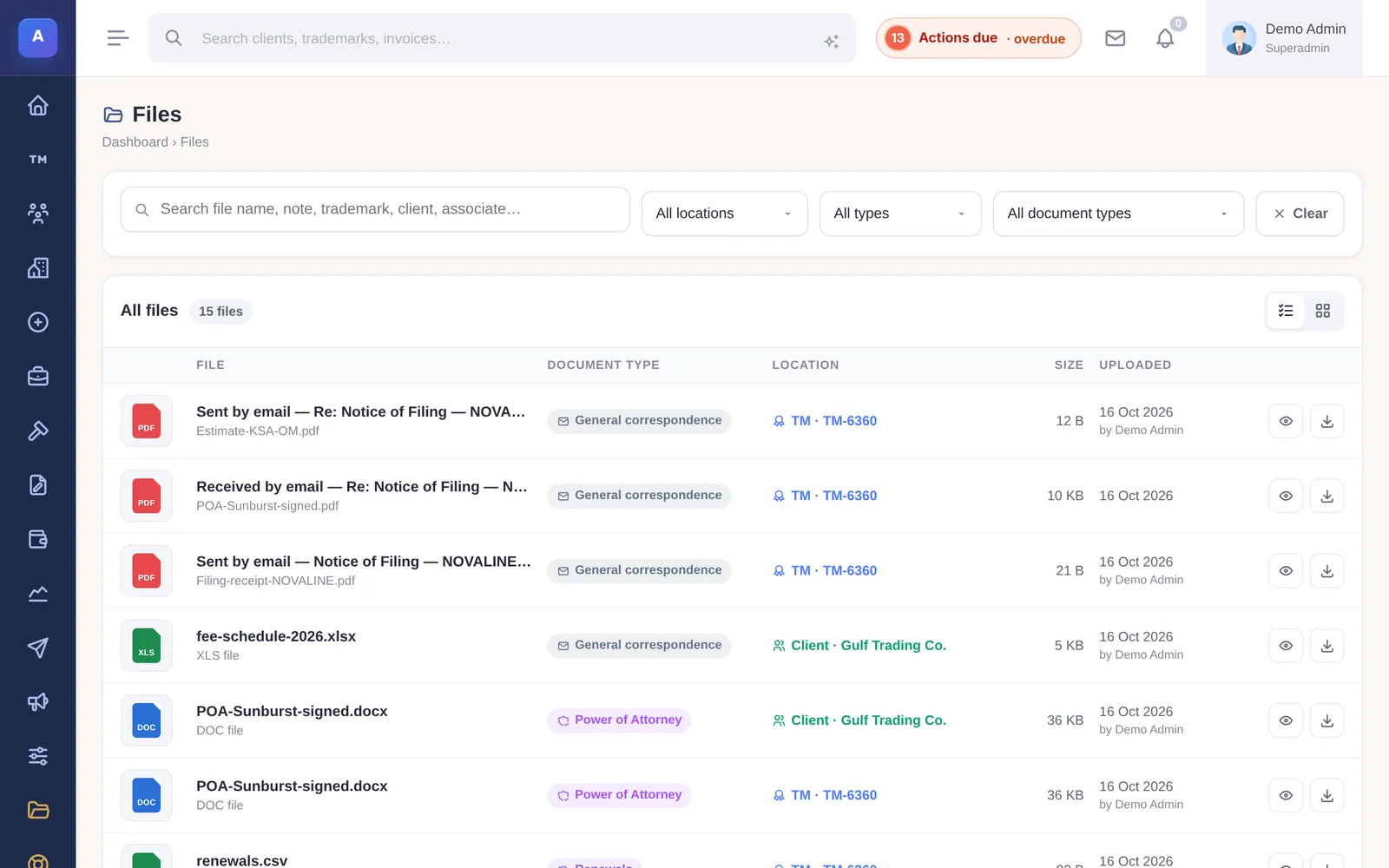
Every file belongs to a record: a trademark, a patent, an industrial design, a client or an associate. It is filed under a category, such as Power of Attorney, Filing receipt, Registration or General correspondence, so the same kind of document is always in the same place.
The Files page in the sidebar lists every file in the firm in one place. Search by file name, note, trademark, client or associate, and filter by where the file belongs, its type (PDF, image, document) or its category.
Uploading files
Open the record’s files and drop files onto the upload area, or click to browse. You can add several at once, choose the category and add one description for the whole batch.
- Up to 10 MB per file.
- PDF, Word, Excel, images (JPG, PNG, GIF), text and ZIP files are accepted.
- To move a file to another category, drag it onto that category or use Move To.
The trademark’s logo is separate from its files: it is set on the trademark itself (JPEG, PNG, WebP or GIF, up to 5 MB).
What the trademark needs next
On a trademark’s files panel, IPBases shows which documents are usually expected at the mark’s current status. For example, a filing receipt and power of attorney while it is pending examination, or the office action and your response when it is objected. The next missing document is marked so nobody has to remember it.
Files that arrive by email
When a reply comes into the IPBases mailbox with attachments, the attachments are saved on the record the conversation is about, under General correspondence. Files that clients and associates send through their portals are saved on the record too.
What clients can see
Each category is either visible or hidden in the client portal. By default, documents such as the power of attorney, registration certificate, acceptance letter, office actions and responses, renewals, recordals, oppositions and assignments are visible; internal documents are not. Change this per category in System Setup › Lists & Fields › File categories.
Google Drive
IPBases can copy a trademark’s logo and files to the firm’s Google Drive, into a folder for that mark under one top-level folder.
- Connect Drive once in System Setup › System › Google Drive, following the steps on that page.
- On a trademark, choose Save to Drive. Use it again later to copy new files.
Copying is done one trademark at a time, when someone chooses Save to Drive. The sync log on the Google Drive page lists what was copied, skipped or failed.
How it connects
This part of IPBases takes information from the parts on the left and changes what appears in the parts on the right. When you change one of them, check the other.
Uses
Something unclear or out of date? Email [email protected].