
Client and associate portals
How the client and associate portals work: giving access, choosing what each person sees, previewing it, and handling the requests they send.
- RequestsPortal requests, from the Clients page
- SettingsPortal settings (link on the Portal requests page)
- Per personThe portal section on each client or associate
- Sign-in pagesyourfirm.com/portal/login and yourfirm.com/associate-portal/login
Two portals on your own domain
IPBases includes two optional portals, each with its own sign-in page on your domain:
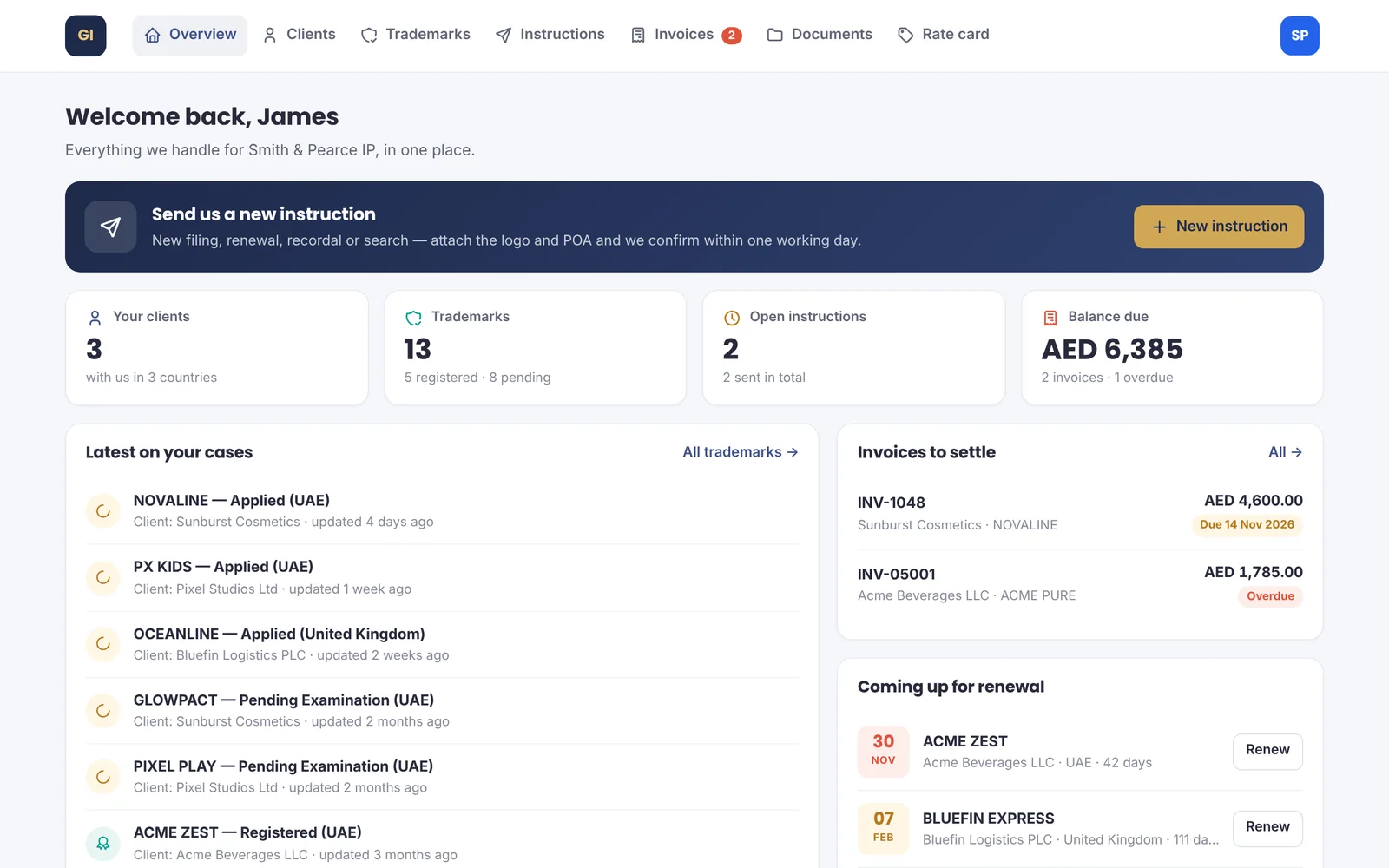
- The client portal, where a client sees their own trademarks, invoices and documents and can send you requests.
- The associate portal, where a correspondent sees the clients they sent you, those clients’ marks, invoices billed to them and their rate card, and can send you new instructions.
Each person sees only their own records.
Giving someone access
Open the client or associate and go to their portal section. They need an email address. Then:
- Set a password, typing one of at least eight characters or letting IPBases create one, which is shown once; or
- Email login details, which sends the sign-in link and a new password.
Switch access off at any time. After five failed sign-in attempts in fifteen minutes, sign-in is locked for fifteen minutes.
What each portal shows
Choose what portal users can see and do. Set the firm defaults once in Portal settings, then give any client or associate their own rules if needed.
- See: trademarks, progress and key dates, official numbers, renewal dates, invoices and balance, documents, your contact card and their profile. Associates can also see their clients, a feed of case updates and their rate card.
- Do: pay invoices online (when Stripe is switched on), download and upload documents, and request a new filing (clients) or send new instructions (associates).
Clients only see invoices billed directly to them, and associates only those billed to the associate. Drafts never appear. Documents appear only from categories marked visible to clients.
Seeing what they see
Use Preview portal on the client or associate to open their portal exactly as they see it, with a banner to return to IPBases.
Requests and instructions
New filing requests from clients and instructions from associates, with any files they attach, arrive in Portal requests, and the team is notified. Each request has a status: new, in progress, done or declined. Add a note that the client or associate sees in their portal, and use Create trademark to start the filing from the request.
Your contact card
The portal dashboards show a contact card with a name, role, email, phone and WhatsApp number. Set it in Portal settings, or leave it blank to use the firm’s email and phone.
How it connects
This part of IPBases takes information from the parts on the left and changes what appears in the parts on the right. When you change one of them, check the other.
Uses
Something unclear or out of date? Email [email protected].