
Trademarks and the filing wizard
How to add and update trademarks, the four filing steps, the routing line, duplicate warnings and what the trademark list can do.
- ListTrademarks (TM in the sidebar)
- New markNew trademark, or + then New filing
- PermissionsView, create, edit and delete trademarks are separate permissions
Adding a trademark
Click New trademark (or New filing on the dashboard). Step 1, Basic info, asks for the essentials: the logo, the name in English, classes, type, client, country, status, application number and application date. A counter in the header shows how many required fields are filled.
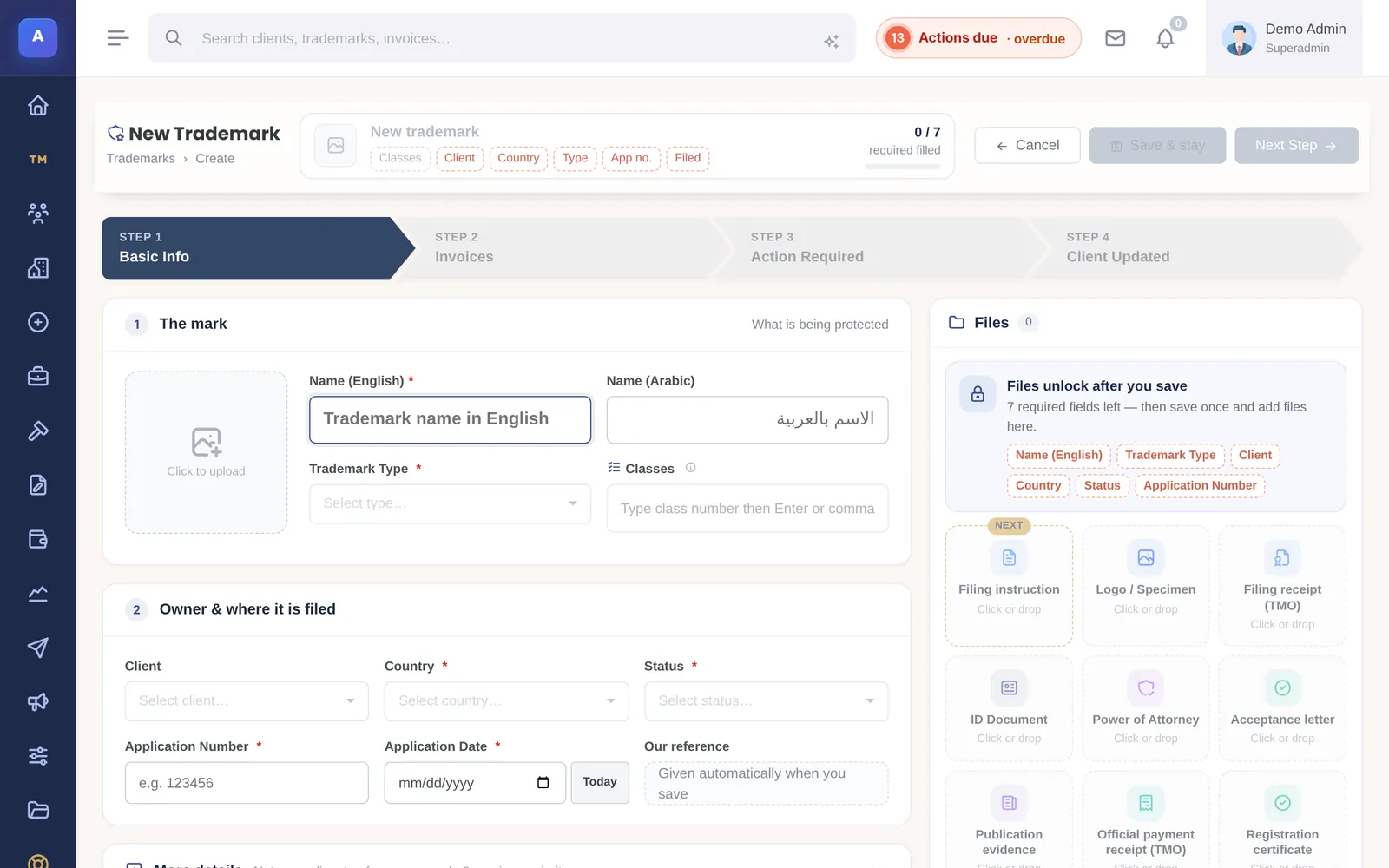
- The Arabic name and local correspondent are on an optional line.
- Registration number, registration date and renewal date appear once the status is Registered or Renewed. Use 10 years from filing fills the renewal date for you.
- Acceptance and publication dates appear for Examined, Published and Opposed marks.
- More details holds notes, applicant details, references, goods and services, and priority.
The reference number (for example TM-1001) is given automatically when the mark is saved.
Who the work came from and who files it
Under client and country, a routing line shows the path of the work: the associate who instructed you (taken from the client), your firm, and, for work filed abroad, the agent who files it. Work in your own country is marked Incoming and work abroad Outgoing; you can change it.
For outgoing work, pick the agent; agents who cover that country are listed first. If the filing route is Madrid, the line shows WIPO and the designated country, and an agent is only needed if a refusal comes.
Duplicate warnings
As soon as you type an application or registration number, IPBases checks for the same number in the same country. A red card means the mark is already in the system; an amber card asks you to check (same number with different classes, or the same client, name and class). Saving a red match asks you to open the existing mark, go back, or save anyway with a reason, which is kept in the mark’s history.
Marks in different countries are never treated as duplicates, so a mark filed in several countries is fine.
The four steps
- Basic info: save with Save & stay or Next step. Files unlock once the mark is saved.
- Invoices: bill the filing, or under Already invoiced? link an invoice of the same client that already covers it.
- Action required: record what needs to happen and the deadlines.
- Client updated: send the notice for this stage to the client or associate.
Editing a mark later opens the same steps.
The trademark page
Each mark’s page shows its key facts, a progress line from filing to renewal, the next open action, the client (and the associate it came through), billing and files. Tabs hold activity, actions, services, files, invoices, tasks, expenses, instructions, cases, goods and services, and every change made to the record.
The trademark list
The list opens with four tiles (portfolio, in progress, registered and renewals in the next 90 days) and tabs for All, In progress, Registered, Renewals due, Renewal lapsed and Abandoned or cancelled. A Possible duplicates tab appears when there are any.
- Search by name in English or Arabic, reference, application or registration number, or client.
- Filter by status, country, type, client, associate, class and a date range.
- Tick rows to send renewal reminders, export to Excel, invoice marks of one client together, or change their status.
- Export gives Excel or a branded PDF of exactly what is filtered.
How it connects
This part of IPBases takes information from the parts on the left and changes what appears in the parts on the right. When you change one of them, check the other.
Uses
Affects
- Actions and deadlinesStep 3 records what happens next
- Client updates and noticesStep 4 sends the notice for the stage
- Invoices and paymentsStep 2 bills the filing
- Renewals and remindersThe renewal date drives reminders
- Files and Google DriveDocuments saved on the mark
- ReportsEvery report counts the portfolio
Something unclear or out of date? Email [email protected].