
Invoices and payments
How to bill clients or their associates, send invoices and reminders, and record payments, by hand or online with Stripe.
- ListInvoices, in the sidebar
- NewInvoices › New invoice, or Invoice on a trademark
- PaymentsPayments, in the sidebar
- StripeSystem Setup › Billing › Online payments
- PermissionsView, create, edit and delete invoices; payments separately
The invoices list
Invoices opens with four totals for the month: invoiced, collected, unpaid and overdue. The tabs show All, Unpaid, Overdue, Paid and Cancelled invoices, and you can search by invoice number, client, associate or trademark.
From each row you can open the invoice, download the PDF, send a payment reminder or record a payment. Tick several rows to send reminders, export to Excel or mark them paid together.
If your data was imported from an older system, older invoices are hidden by default. A link above the list shows them again.
Creating an invoice
Choose New invoice and pick the client. The builder has groups on the left and a live A4 preview on the right, which you can show as Instant or as the Real PDF.
- Bill to: bill the associate and mention the client, bill the associate only and hide the client, or bill the client directly.
- Currency & dates: the currency, invoice date and due date.
- Services and expenses: tick the unbilled work on the client’s marks.
- Custom line items: add lines with a professional and an official fee, or pick a standard service wording.
- Discount & VAT: a percentage or fixed discount on the subtotal; VAT applies to professional fees only.
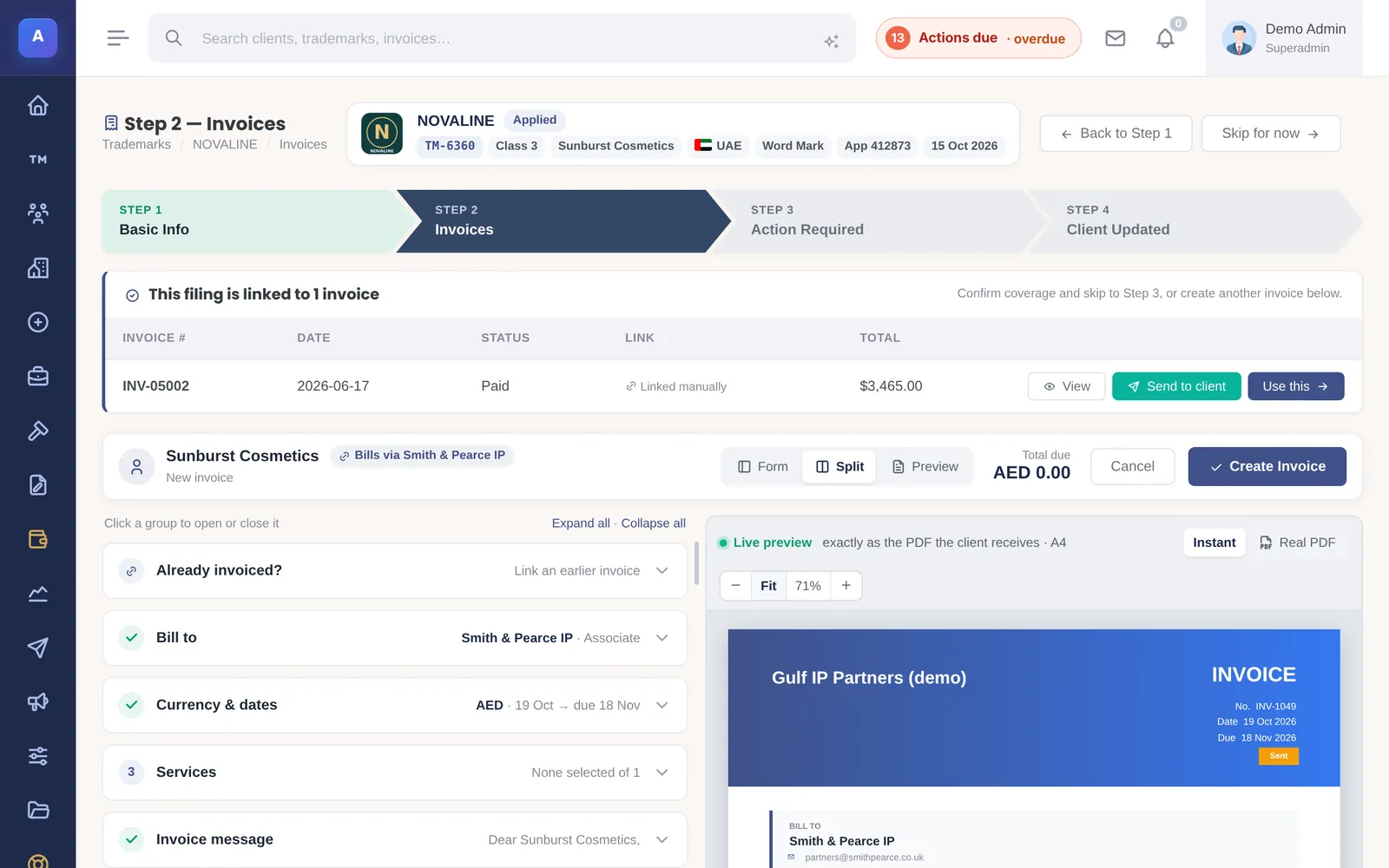
Choose Create Invoice. You can then send it by email straight away or view the PDF.
Sending and reminding
Email Invoice sends the PDF to every address of whoever is billed (the client or the associate), or to the ones you tick. The email signature is added and the email is kept in the mail log.
Send Reminder sends the overdue wording to the same people for any unpaid invoice with a due date. IPBases can also send overdue reminders on its own, 7, 30 and 60 days after the due date by default.
Recording payments
Record Payment takes the amount (the balance by default), the date, the method and a reference. When the payments reach the invoice total, the invoice is marked paid. Deleting a payment reopens the invoice if it is no longer fully paid.
Payments in the sidebar lists every payment in a period, with a total.
Online payment with Stripe
If you switch on Stripe, invoices get a Pay online button, including in the client and associate portals. A payment is recorded only after Stripe confirms it, so opening the payment page never marks an invoice paid on its own.
Invoice status
New invoices are created as Sent. They become Paid when you mark them paid, when payments cover the total, or when Stripe confirms an online payment. Overdue is worked out from the due date and is not a separate status you set.
How it connects
This part of IPBases takes information from the parts on the left and changes what appears in the parts on the right. When you change one of them, check the other.
Uses
Something unclear or out of date? Email [email protected].