
How the built-in mailbox sends, receives and files every email on the client, associate, mark or invoice it is about.
- MailboxThe mail icon in the top bar, or Mail in the sidebar
- SettingsSystem Setup › Email & Automation › Mailgun
- PermissionsView mail; Send mail
Your firm’s mailbox
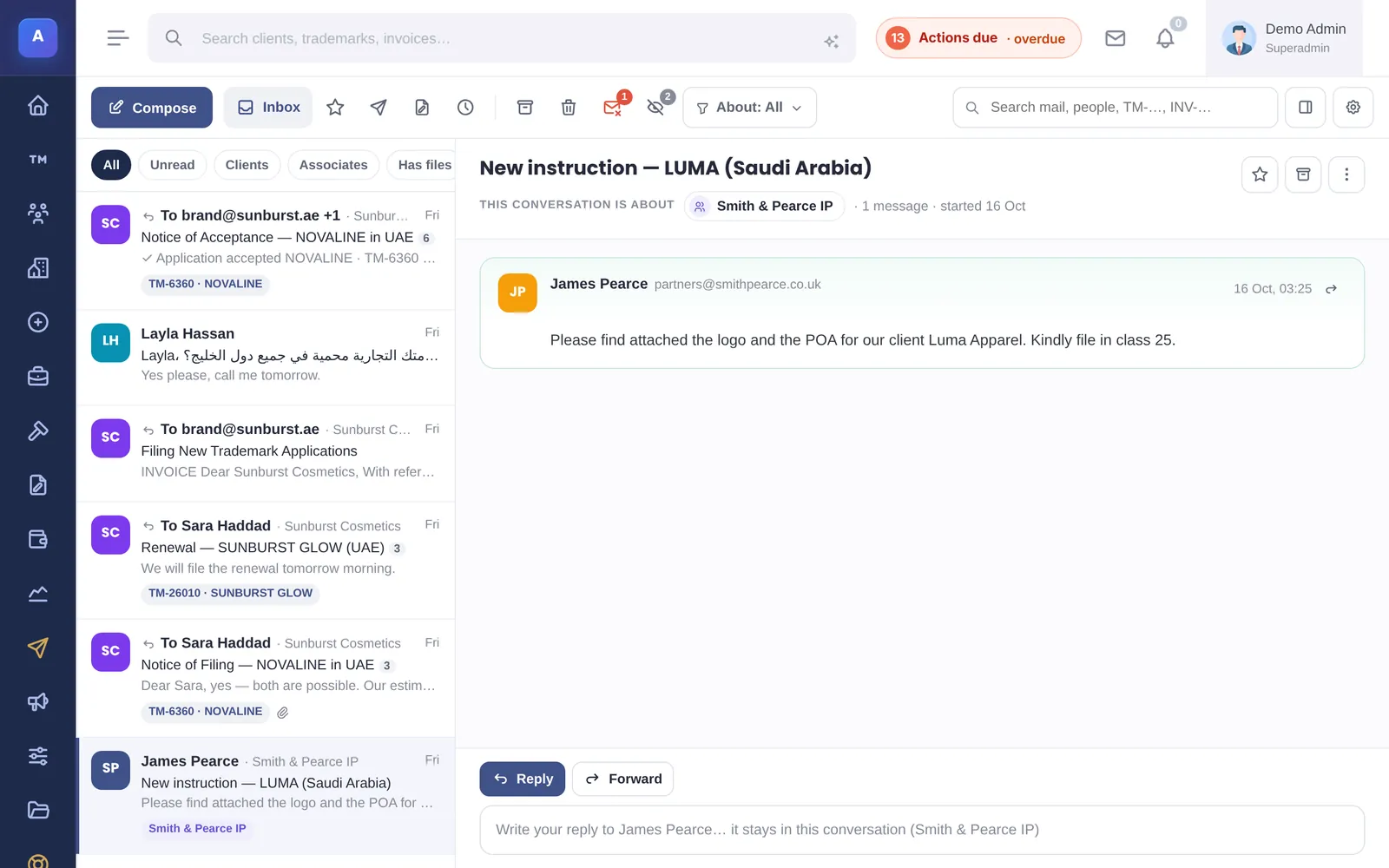
Mail is a full mailbox inside IPBases. Emails you send from IPBases and the replies that come back are grouped into conversations, and each conversation is filed on the client, associate, trademark or invoice it is about.
Folders and filters
- Folders: Inbox, Starred, Sent, Drafts, Scheduled, Archive and Trash.
- Filters: All, Unread, Clients, Associates and Has files, plus views for conversations about trademarks, invoices or renewals.
- Search: by mail, person, trademark reference or invoice number.
Archive hides a conversation from the Inbox; a new reply brings it back.
Writing and replying
Choose Compose, or email from a client, trademark or invoice so the recipients and the record are filled in for you. You can start from an email template, attach files from the record or from your computer, save a draft, or schedule the email for later. Your firm signature is added.
Open a conversation and use Reply or Forward. The panel on the right, About this conversation, shows the client or associate, their trademarks and their status, the next deadline, open invoices and other conversations with the same people.
Replies and attachments
When a client or associate replies, the reply joins the same conversation and is marked unread. Attachments they send are saved to the record’s files under General correspondence. A monitoring copy can also be sent to a firm address you choose.
With Mailgun, each email also shows whether it was delivered and opened, and a failed delivery is flagged.
Setting it up
Mail is sent through Mailgun (recommended, and needed for replies to arrive in IPBases) or SMTP. Set it up in System Setup › Email & Automation › Mailgun, where the health check confirms the domain, the reply route and the delivery tracking, and Send test email checks it end to end.
How it connects
This part of IPBases takes information from the parts on the left and changes what appears in the parts on the right. When you change one of them, check the other.
Uses
Something unclear or out of date? Email [email protected].